Table of Contents
The Film Like Look Starts the Moment You Pick Up the Camera
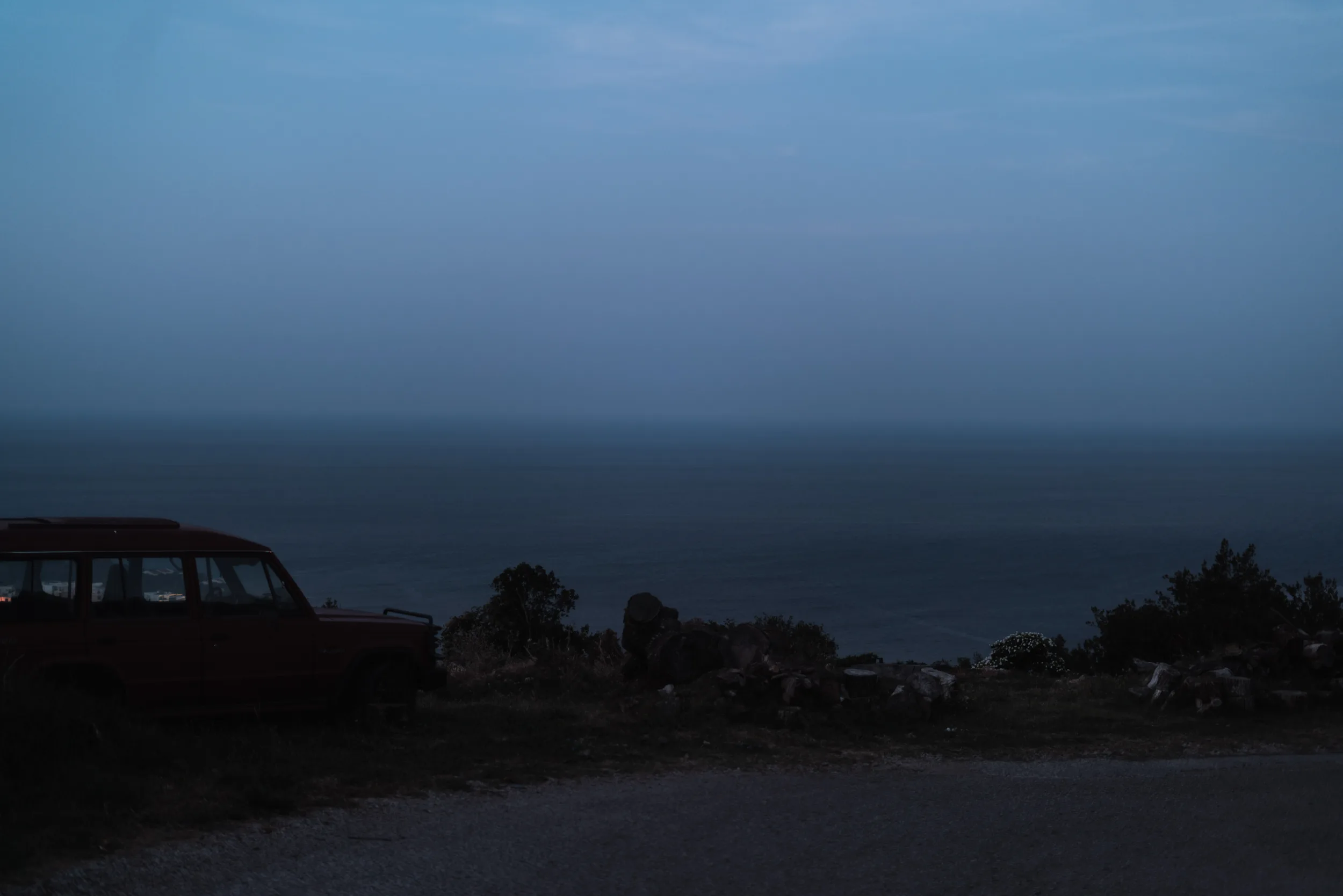
Quite often, when I pick up my camera, I think about how to make a digital photo look like film—that warm, nostalgic vibe that I often want to convey. Show a street in that vintage looking, grainy, low clarity tones that make everything look nostalgic.
Of course to get a bit of a film look, you can simply apply some of the edits that I will also describe below, but to go full on film without spending 10€ per roll + 10€ per develop you may need to start the process a bit earlier.
Lenses That Make Digital Photo Look Like Film
Of course the lens you use will affect the mood quite a lot. Using vintage lenses like the Helios 44M adds a swirly bokeh and makes the image distorted in a nice dreamy way. On the contrary from the modern lenses, that lens will be giving you less clear and contrasty image, but you can tweak the contrast in postprocessing if you wish.
If you are still deciding what type of photography you prefer, check out this post: The choice between film and digital photography
If you also shoot on film and are looking for supplies, my friends at Berlin Photo Studio have a good variety of film and film photography equipment. This is an affiliate link, so buying through it also supports me.
White Balance
I also tweak the white balance to warmer tones, sometimes adding a hint of green. On most modern cameras you can set auto balance and then add some of your correction on top. for that in the white balance menu you can press to the right side and then will see the colour square and on the photo below.

Slightly Underexpose
Another thing that is good to do in photography in general but especially vital for film like photos is to slightly underexpose to preserve highlights. I would recommend shooting in AV mode and setting exposure compensation to -0.3 or -0.7 steps to make sure that the highlights aren’t overexposed. It’s like a golden rule that you underexpose or basically expose for the highlights, otherwise super white highlights look quite unnatural.
Some of that info I have in a post dedicated to understanding light in photography (Actually that topic is so big and important that I could write a whole book about it rather than a post), but, shortly-speaking, try to be brave to keep your shadows dark, most importantly is that your subject should be well lit and well visible.
These steps lay the foundation for a film-inspired aesthetic and give you good material to edit with, even before editing.
Shoot in RAW
Always shoot in RAW format. It captures more detail and gives you greater flexibility in post-processing. Jpeg is only usable if you do not plan to edit your photos but for a film look, it’s vital to be shooting RAW. To make a digital photo look like film you need to adjust all your colours to fit a colour palette that you normally see on film and RAW format will allow you to do that.
RAW is a format that has all info from the sensor and Jpeg is a predefined image, is a compressed photo where all colours are within the photograph. You can tone Jpeg colours but it’s like painting over another colour, almost like putting a filter. In RAW format you have an area defined like a colour and then you can set it almost to any colour you want.
Edits to make a digital photo look like film
Basic Settings
In Lightroom, start with the Basic panel: adjust exposure, clarity, saturation and so on. You will return to this section several times for a good edit.
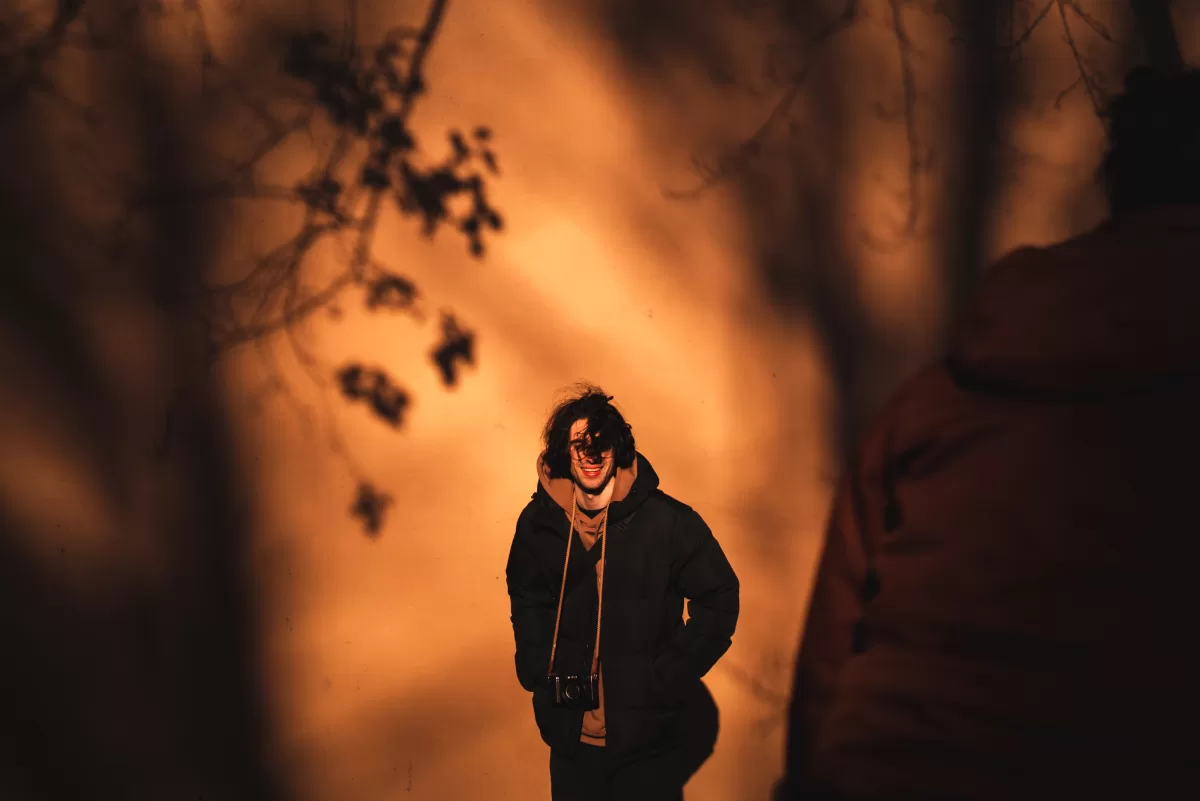
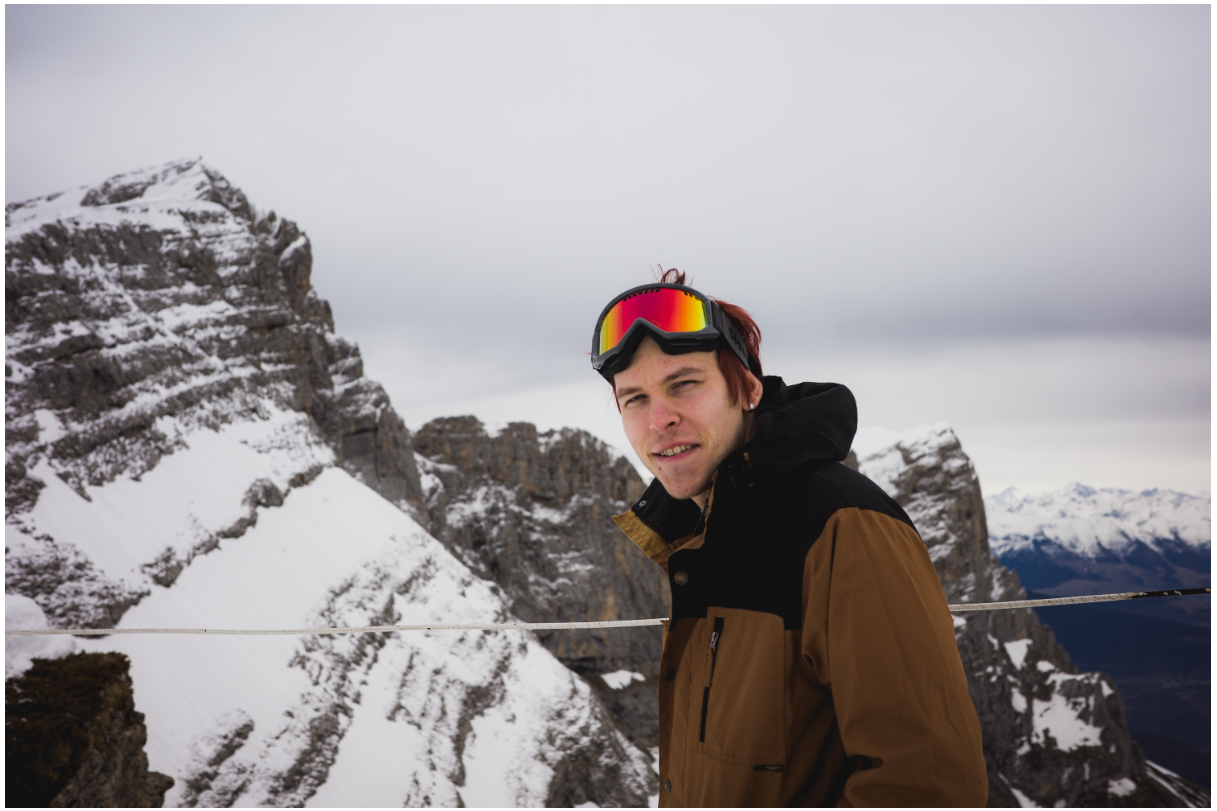
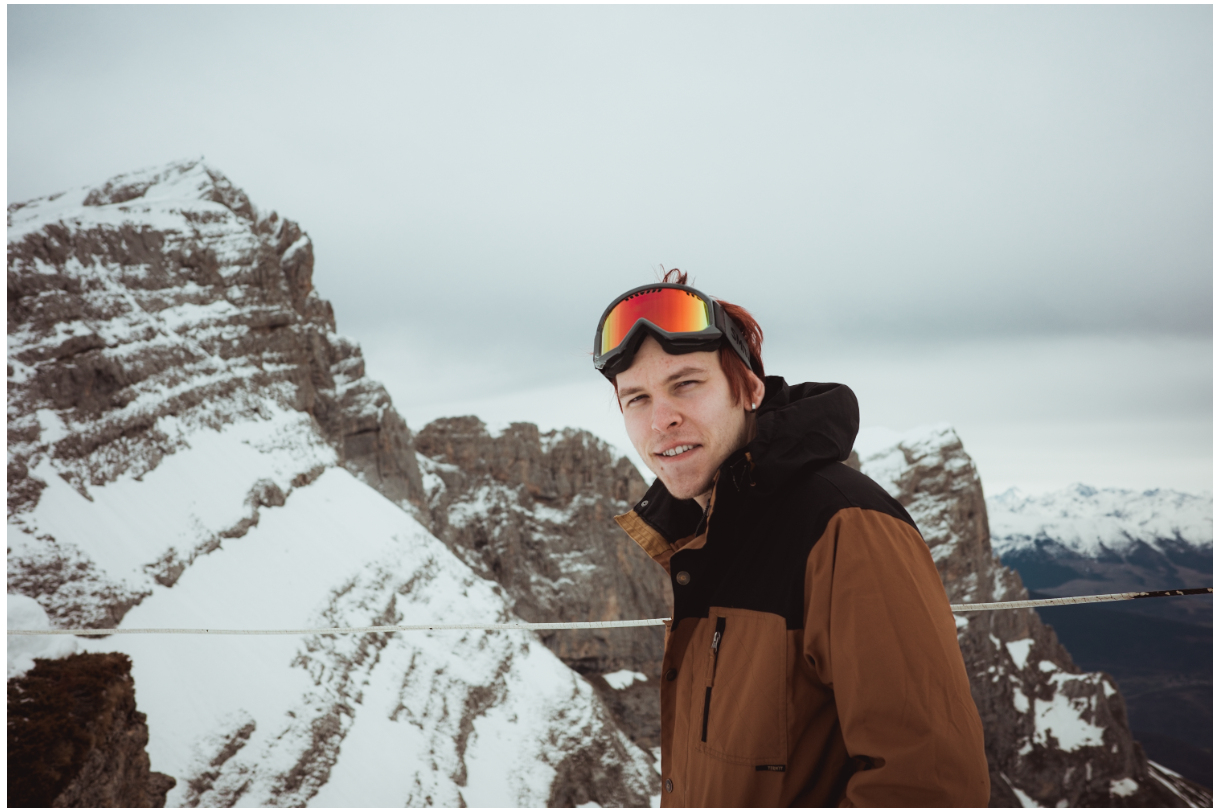
For a reference I will have a random image of me, edited to give it a film like look alongside this tutorial.


- When desired, set white balance manually—try a warmer temperature and a slight tint towards green.
There are different types of film and some of it gives you colder colours, some gets a bit more red, but most film will give you yellow green hues. It also depends on the light you had when shooting, sometimes even -5 tint will look quite green.
- Pull back highlights (around –20 to –40) to save details.
Film has high dynamic range and proper film photos never have overexposed highlights. For our eyes it’s more natural to see pitch black shadows rather than pure white sky.
- Reduce clarity to around –10 or –20 for that softness on skin and midtones. It’s especially important on portraits and let’s you spill a bit of highlights.
Film doesn’t have that sharpness and clarity as digital cameras do. But that’s part of the appeal! Reduced clarity helps to stylise the photos further.
- Texture can stay around +5 to +10 to keep detail without harshness.
We need a soft image but not hazy and blurry in most cases. Especially if you shoot with a vintage lens you need to find that balance between mood and sharpness.
- Avoid dehaze or keep it close to zero. With some vintage lenses it helps but use it with care!
Dehaze is a tricky setting, it helps to gain colour and contrast but may easily make everything look dirty.
Gentle Contrast with Tone Curves
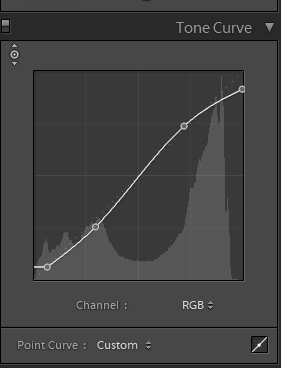
Open the Tone Curve panel and create a subtle S-curve:
- Lift the black point slightly by dragging the bottom-left anchor up a bit (around +10 on the curve) for faded shadows. That’s one of the main things that make film photos have their style.
- Pull down the mid to lower midtones to deepen shadows softly.
- Keep highlights smooth and pull down the white point a bit to make them slightly softer as well.
Especially if you are using a touchpad it’s easier to click to create a dot on the curve, then hover over it and then use up and down arrows to be able to fine tune the adjustment.
2. Colour Palette & Skin Tones


In the HSL panel, desaturate colours a little, especially reds and yellows outside of skin tones to avoid harsh saturation.
- Reduce saturation of greens and blues by around –10 to –20 for that faded vibe.
- Use the luminance sliders to add a bit of contrast to skin -10 for reds (usually in shadows) +15 for orange (usually in highlights). For darker skin tones than mine you can use same principles
Keep in mind that this way you edit colours separately, one by one. Sometimes on this stage you can also see that you can push the whole white balance a bit further based on these settings, but our aim is to make skin colours looking natural while the whole picture a bit toned into a certain colour palette.
6. Colour Grading — Warm Shadows, Cool Highlights

Nowadays I have 3 big colour circles for highlights, shadows and midtones.
In Lightroom’s Colour Grading panel, work on the shadows and highlights separately:
- Shadows: add warm tones by pushing hue toward brown/red and saturation between 5-15.
- Highlights: shift hue toward cyan/blue, but keep saturation low (5–10) for subtlety.
- Balance slider can stay slightly toward shadows (–10 to –20) to keep the warmth grounded.
This approach adds a gentle colour contrast between warm shadows and cool highlights, giving the image more depth without relying solely on light and dark values. It’s softer and more organic than the usual punchy cinematic style.
Side note: This technique isn’t new — late Renaissance painters used the same idea with warm, earthy shadows and cooler highlights to create mood and depth. So your vintage film look actually taps into a centuries-old approach to colour.
5. Intentional Grain


Go to the Effects panel and add grain:
- Size around 20–50 depends on how you feel, but don’t overdo it.
- Roughness I barely touch usually.
- Amount between 10 and 30 usually works well for a vintage feel.
Here I had to push it a bit further than I usually do, to make it actually visible on a smaller screenshot.
Colour calibration

The lowest section of the editing includes the colour calibration which also helps to adjust the colour slightly more. You can straight away, make tint for shadows a bit greener and then adjust the rest of the colours as you feel. I need to come back to the base rule that it better to under edit a bit than to over edit.
Final Check & Subtle Tweaks
It definitely takes practice to completely understand how to make a digital photo look like film, but these Lightroom techniques make it feel intuitive once you get going. Go back and forth between basic settings and colour adjustments, curve and exposure.
As each of the settings affect the photograph a bit differently, you can see where one setting makes too strong of an effect and reduce it with another setting (like split tone and vibrancy/saturation adjustments) and compare before/after, that always helps. Adjust clarity, grain, or colour grading slightly if something feels off. Same as any editing style, film looks come from layering small changes.
One more tip is to not work on editing for too long! Make sure to give your eyes some rest time to time, otherwise you will not see when you push a setting too far. Sometimes you return to it in a couple of hours and don’t understand how could you edit that so badly.
Create a Preset
If you enjoy the work you’ve done and like the colours you got out of your RAW, you can create a preset to apply these settings to other images in your series.

Final results and some comparisons
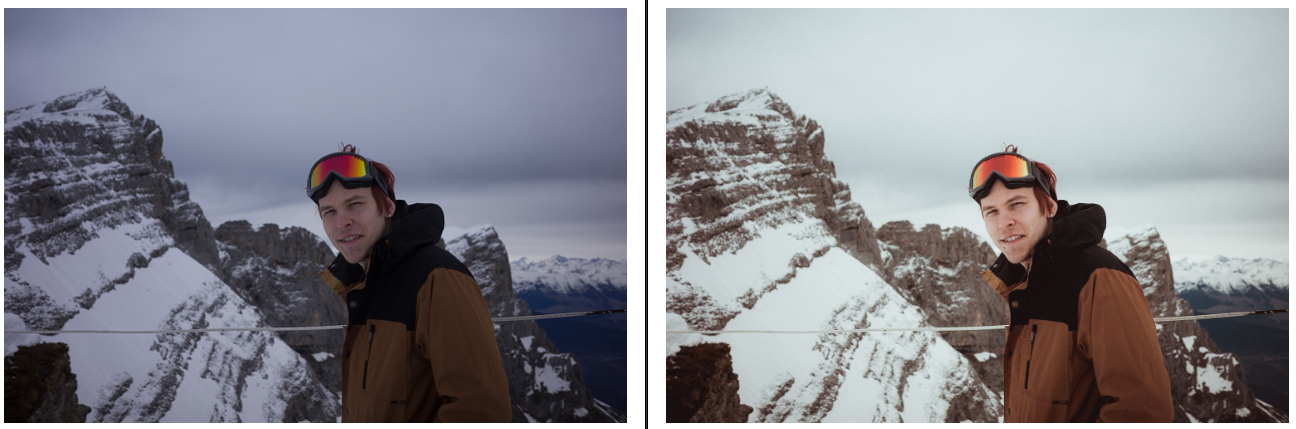
On the left you can see a straight out of camera raw shot and on the right a fully edited image with film like colours. And below you can see a little gallery with the preset I have created during todays tutorial.


Thanks a lot for reading till the end. If you enjoyed this tutorial and would like to see more, you can go to my blog section for photographers and check out many more posts. If you would like to support me you can subscribe to me on patreon where I also have a free self learning course where I share much more info in a detailed way from basics to more complex stuff.