I wrote many articles and tutorials on photography and how to improve your photography composition. I told you many times that you need to remove all of the odd details that are not playing any important role. Even my very first post was about focusing your composition on your main subject. But I never actually told you what tools I use and how to use these tools to remove unwanted objects from a photo.
So there are many ways to remove unwanted objects from a photo. For that, you can use Lightroom, Photoshop or even other apps on your phone or online. While some of the tools are automatic and you are using AI technologies, a couple of tools in photoshop are manual but give even more control over the result. Since this is a photography blog, about learning photography and improving at it, I will mostly focus on Photoshop.
For those who love videos more
Contents
- Apps for removing unwanted objects
- Remove unwanted objects in Lightroom
- Remove Unwanted objects from a photo in photoshop
- Spot healing brush tool
- Use the healing brush tool to remove unwanted objects from your photos.
- The way to use the clone stamp tool
- Patch tool to remove unwanted details from a photo.
- Other settings for all of the 3 tools to remove unwanted objects from a photo
- Content-Aware Fill Tool
Apps for removing unwanted objects.

I will not review each of the apps separately, but all of what they do is similar to the content-aware fill tool in Photoshop. They sample parts of the images and replace the selected area with these parts of the images. Most of them use AI technologies and work almost perfectly nowadays, but sometimes you need to edit it slightly after you use the tool.
Remove unwanted objects in Lightroom
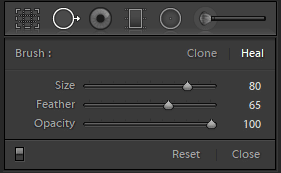
In Lightroom, there is one tool you need to remember and this is the spot removal tool. There are two modes one is “heal”, and another one is “clone”.
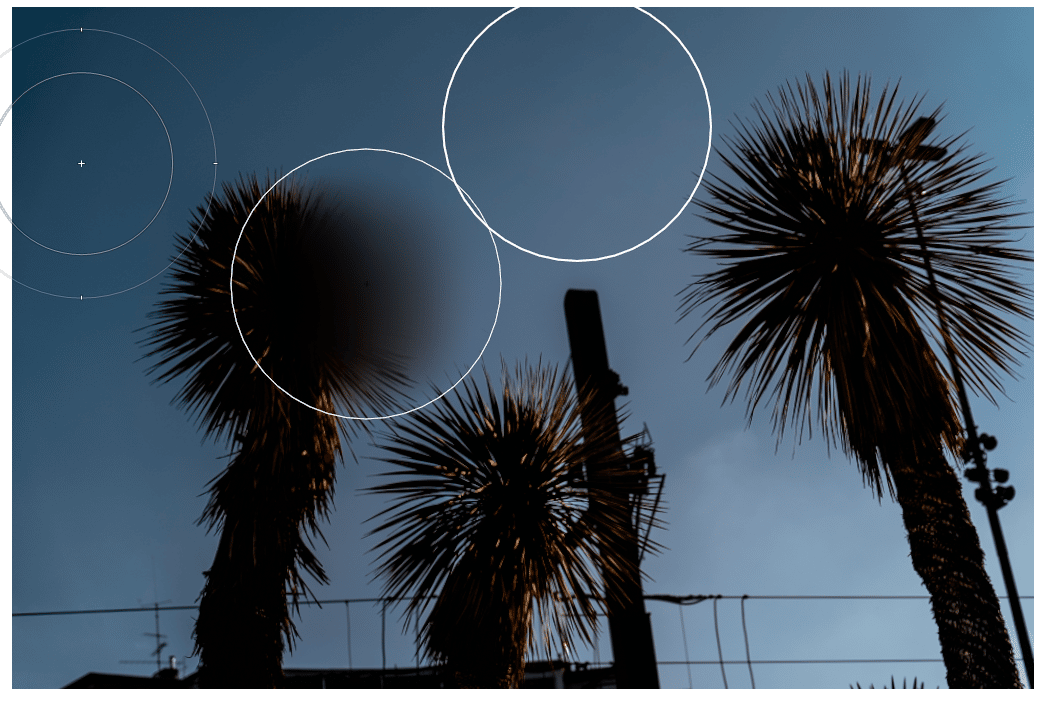
The healing mode overlays an area with a sample trying to merge it with the background and surrounding area. It’s also called colour adaptation
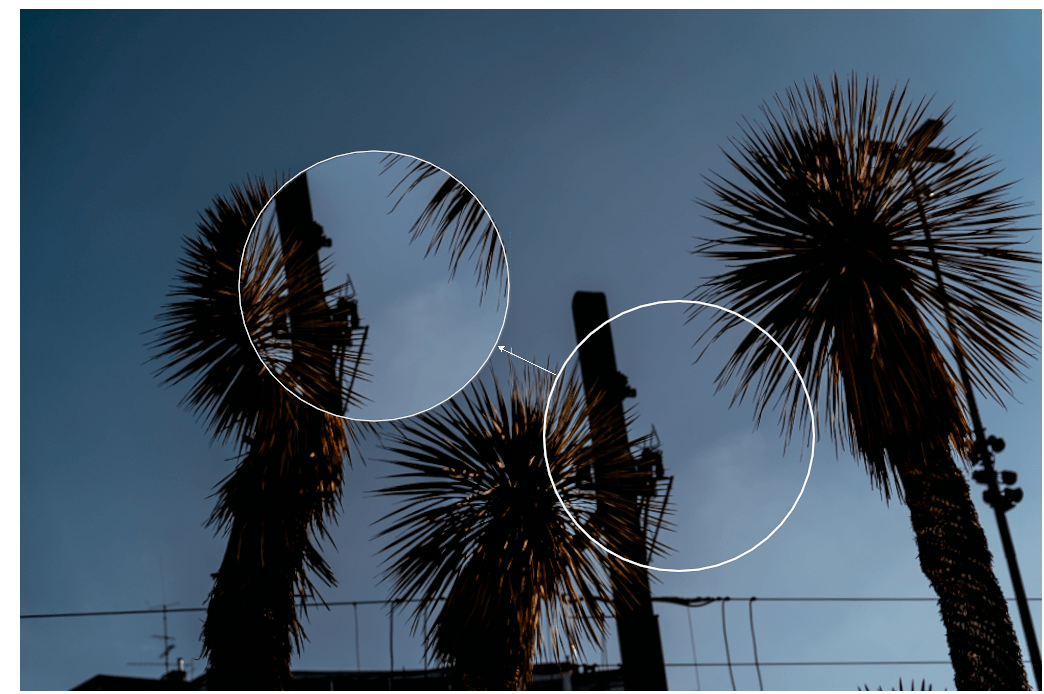
The clone mode simply copies the spot from another part of the image.
The reason why the tool is called the spot removal tool is that it’s quite limited. You can remove some objects from your frames in Lightroom, but it is a lot harder than in Photoshop.
Remove Unwanted objects from a photo in photoshop
Photoshop has a variety of tools to remove unwanted objects from a photo. The easiest one to use is the spot healing brush tool.
Spot healing brush tool
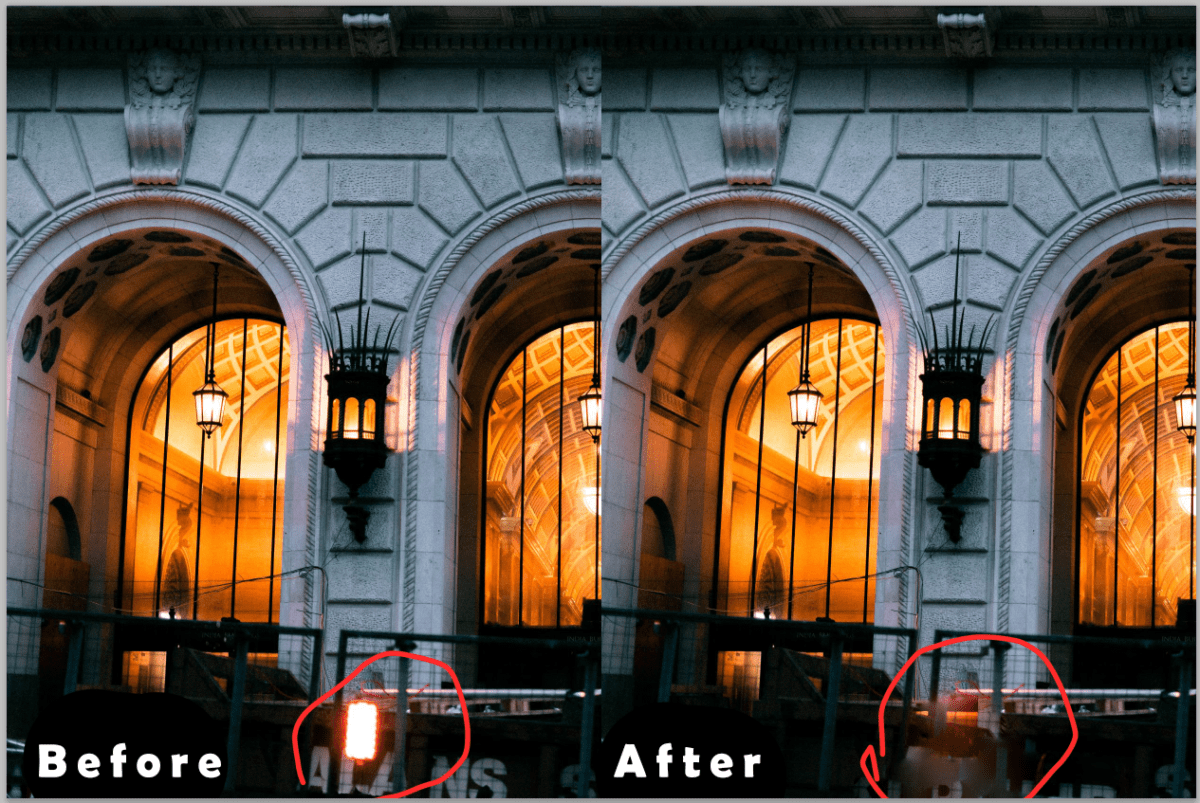
To use the tool you need to simply paint over anything you need to remove. As you can see above this tool doesn’t work perfectly. Since this is a spot-removal tool, it works best with any spots you had on your lens. But it doesn’t really work with removing any big objects from your images.
Use the healing brush tool to remove unwanted objects from your photos.
This tool is a bit more advanced and has a bit more power in it. When you use the healing brush tool, you blend the sample that you place on the picture with the surrounding area.
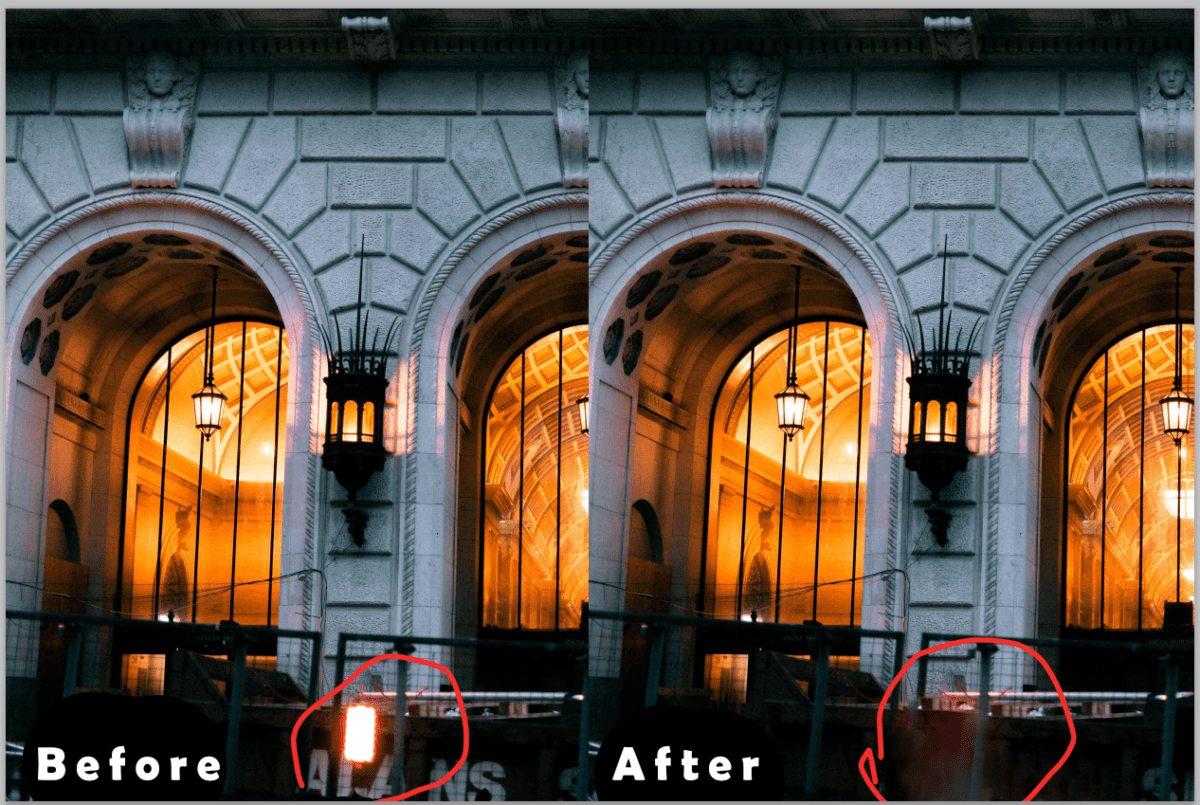
To Use the tool you need to press alt and pick a sample on the picture and then paint over the unwanted object that you would like to remove.
The way to use the clone stamp tool
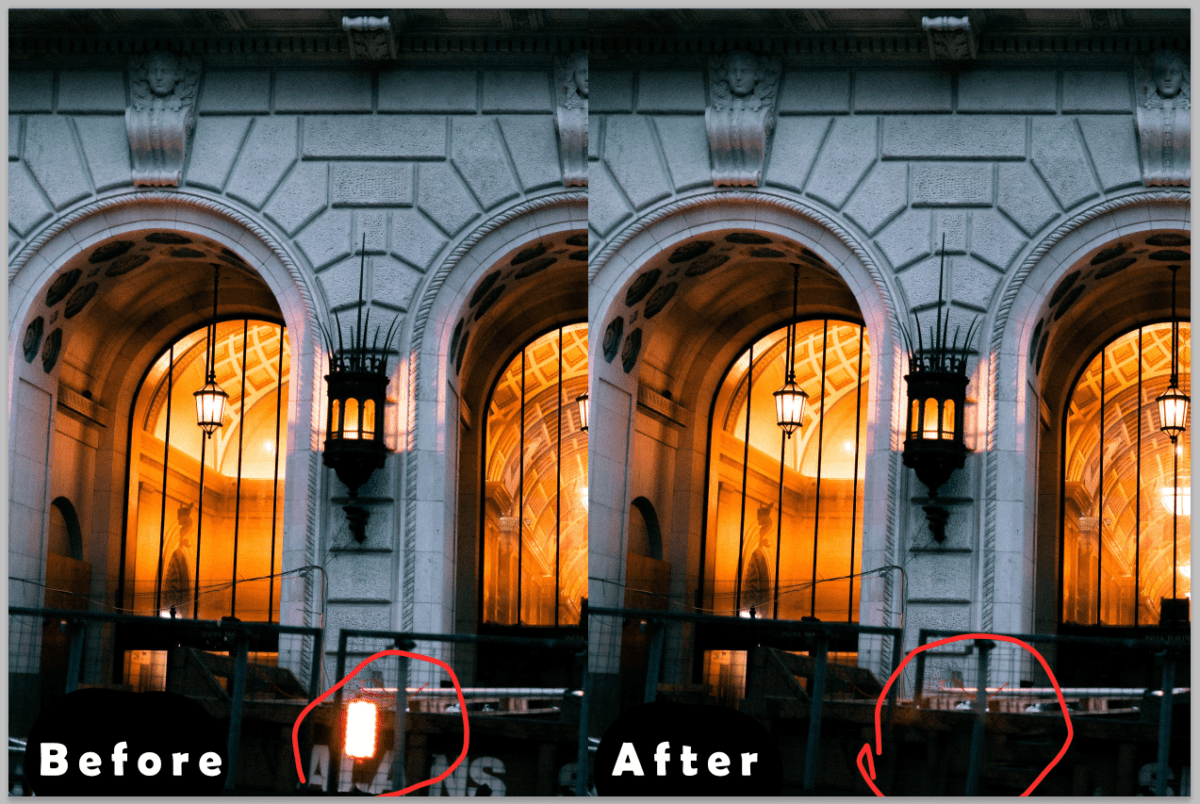
As you probably understood from the name of the tool it simply clones another part of the image. 90% of the time I use this tool first and then I fix the result with the healing brush tool. Again you need to press alt and pick a sample on the picture and then paint over the unwanted object that you would like to remove.
Patch tool to remove unwanted details from a photo.
Another tool is the patch tool. This works the same way as the stamp tool but you need to select the area you want to be replaced and move the selection to the area that you want to replace it with


There are 2 modes of the patch tool: content aware and normal.
Other settings for all of the 3 tools to remove unwanted objects from a photo
Photoshop is probably the biggest program (in the sense of toolset) that I know and it took me several years to learn all of it. So of course there are more variables you need to know to use these tools.

On the top of your screen will be these settings for the healing brush and the clone stamp tool.
Starting from the left to right you can first see the setting is your brush.
The Brush Choice
You can use any brush you have but for photography, I always use either a soft round brush or a hard round brush.
Brush Settings
The next button is for the settings of the brush (I almost never use it)
Stamp Settings
After is the button for the stamp settings. The handiest option I found is the angle of the stamp.

Sometimes to remove something you encounter the problem that there’s some curved edge of something and your unwanted object is on top of it. When you have this problem the angle of the stamp or healing brush will help ( it works for both).
Blending Mode
The mode feature is quite advanced and I rarely use that. But this works the same as the blending mode of the layers.
Opacity + Flow
Opacity is a quite basic one and I’m pretty sure you understand what it does. Flow works continuously and if you keep painting it will increase opacity. So if you set the flow to 50%, you will need to apply it multiple times to get 100% opacity.
The difference between opacity and flow.
- With the opacity setting, you apply a certain opacity in a single click and it doesn’t matter how long you apply that.
- With flow, you gain opacity while painting over the same area.
Stamp angle
Does the same as in the stamp settings. See above.
Aligned or not.
If the stamp is aligned it will change the point of your sample along with you moving the cursor. If you remove the tick it will stick to the same place that you picked.
Sample Setting
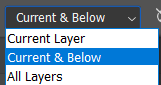
This one is quite important! Sometimes you might wonder: “why is it not sampling what you need?” That might be because you have chosen the wrong sample setting. I often use the setting “current and below” when you have a few layers of colour and value correction above your image it might be sampling them as well. Then you will place an edited version of your image on the unedited layer. Of course, in 90% of the cases, you don’t need that! So whenever you encounter this problem check these settings out.
Ignore Adjustment Layers
The next button does the same as I told above but ignores only the adjustment layers. When the feature above can be applied in case you have painted something over and want to ignore that too, this feature works only with all of the adjustment layers.
Pressure Variable
This one is only handy if you use a tablet and changes the size or opacity with the pressure.
Content-Aware Fill Tool
And here it comes. One of the strongest and most time-saving features.
To use it you need to first select the area you need to fill with any of the tools. And once you’ve done that you can go to Edit > Content-Aware Fill.
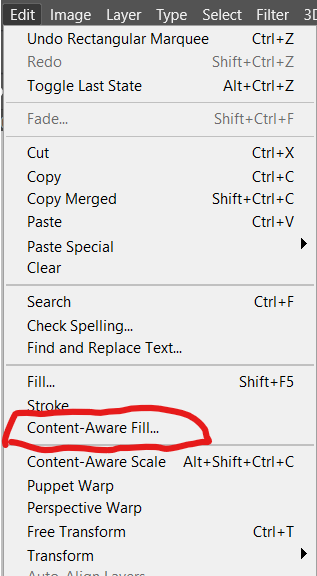
A new window will open.
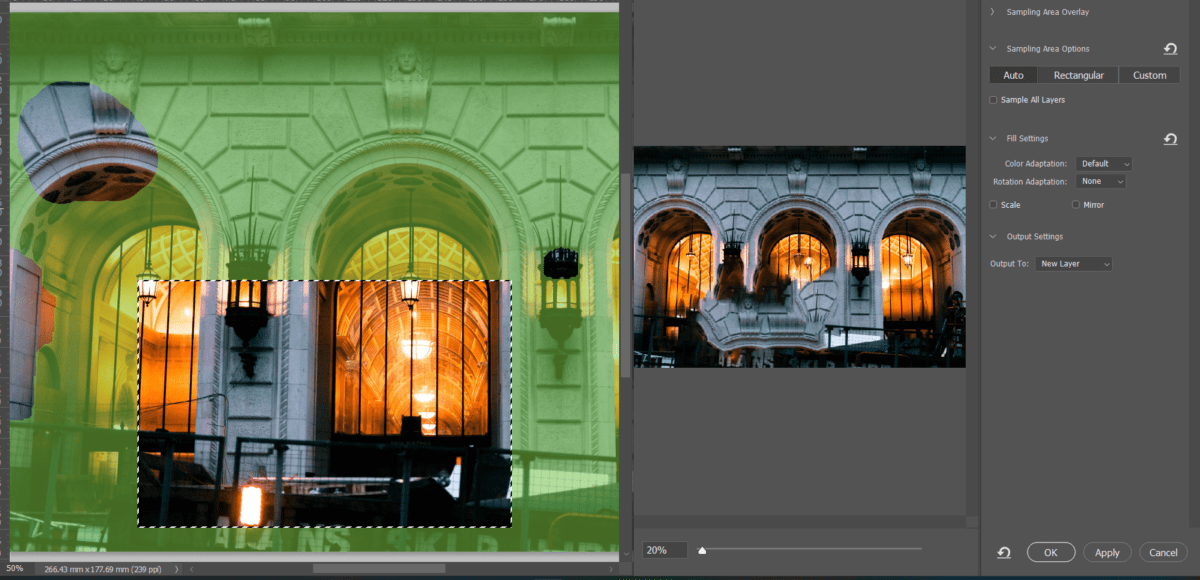
The green area is the sample area and you can change this selection using the tools on the left. On the right, you will see your result in your life view.
I would recommend making the output on the new layer since that will give you more options for altering it later.
The settings on the right side are helping to improve the results.
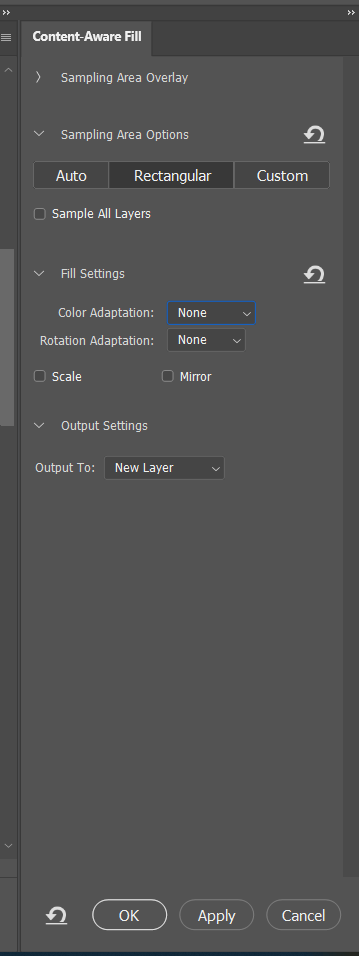
If you tick the scale it will automatically adjust the scale to make it look more natural.
Colour adaptation basically allows you to choose if you want Content-Aware fill to behave as a clone stamp or the healing brush. I think you get what means “Rotation Adaptation”
With this tool, you can remove any objects from plain backgrounds in no time!
Here’s my quick before and after:
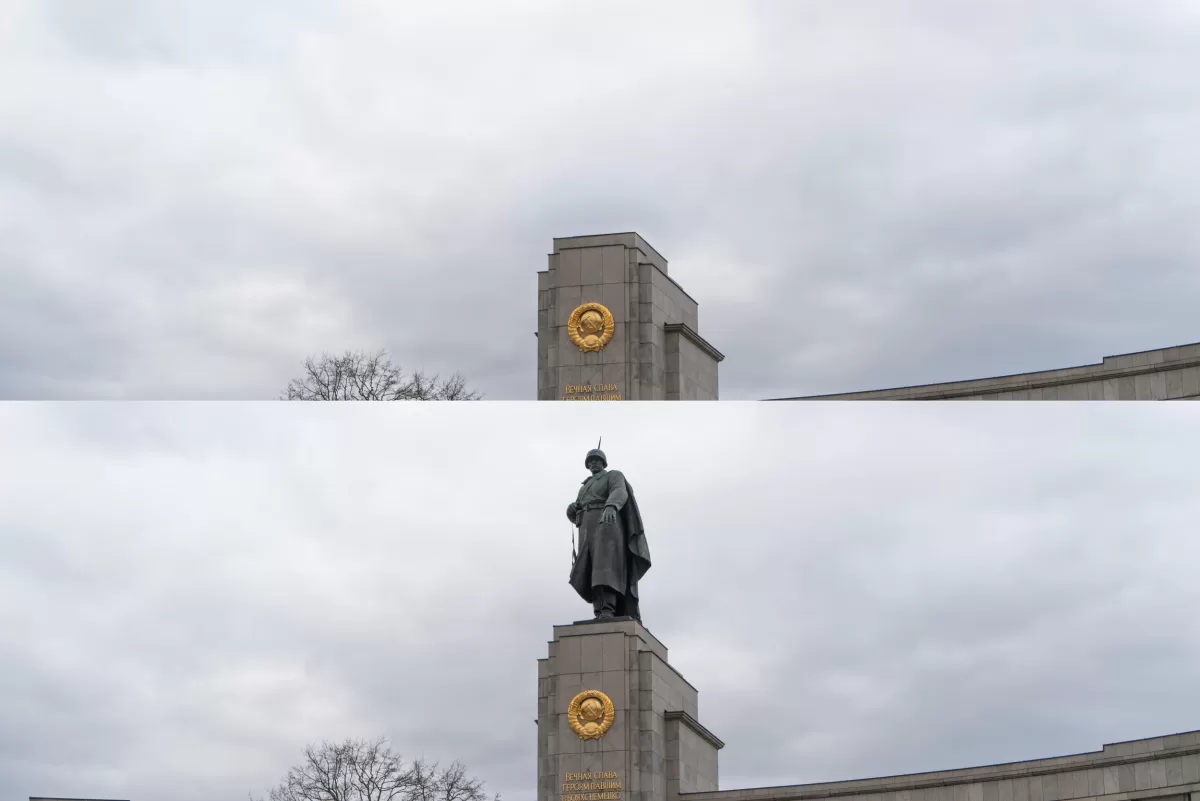
These are the 4 tools to remove unwanted objects from your photos in photoshop
Another post about editing in photoshop you can find here:
.Gradient Map – Powerful tool to improve the post-processing of your photos
Thank you very much for reading till the end. Feel free to bookmark this post to come back to it whenever you need to check anything here. And if you’d like to learn photography faster, you can subscribe to my newsletter. In the newsletter, I post updates about the blog.