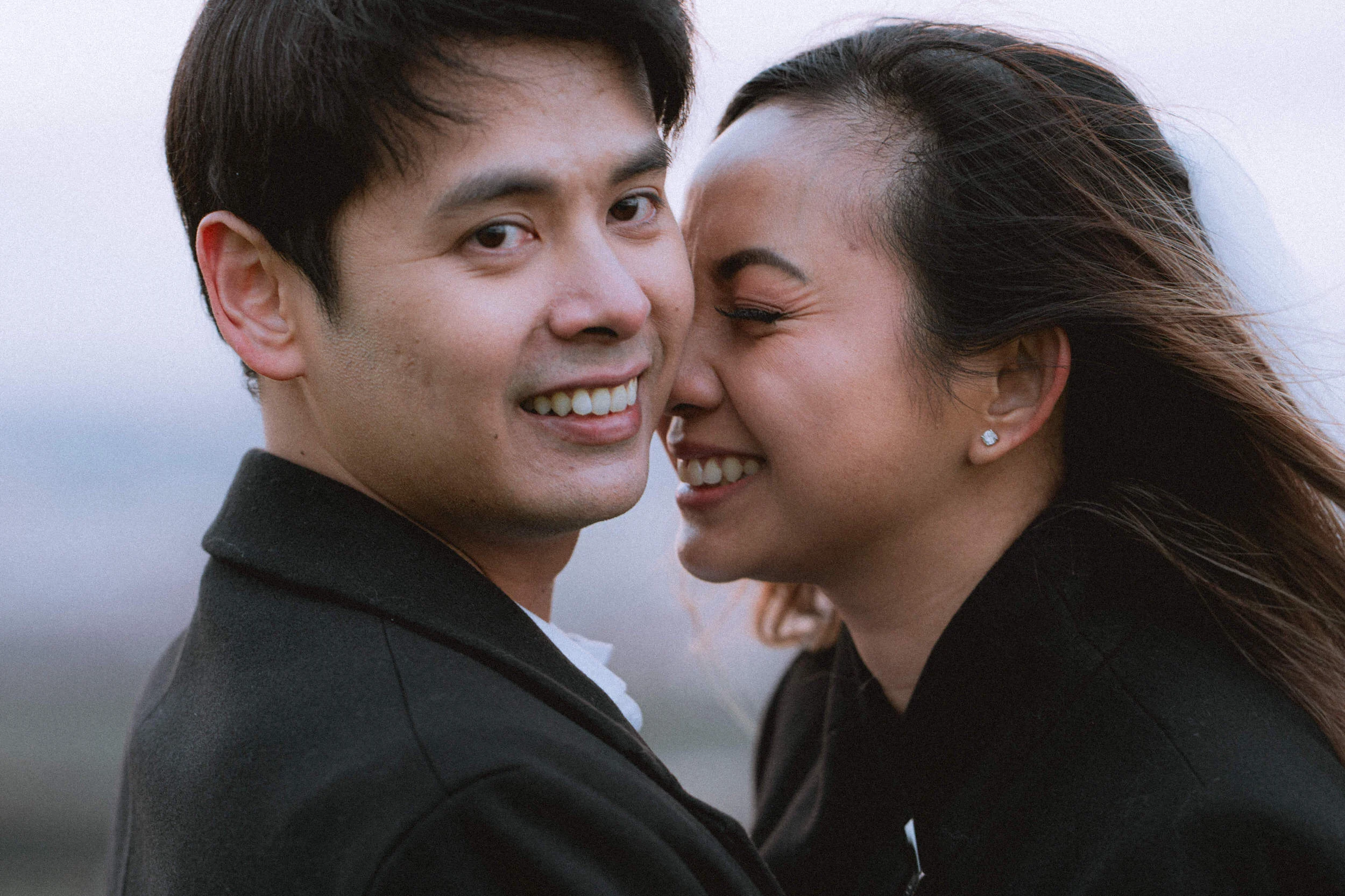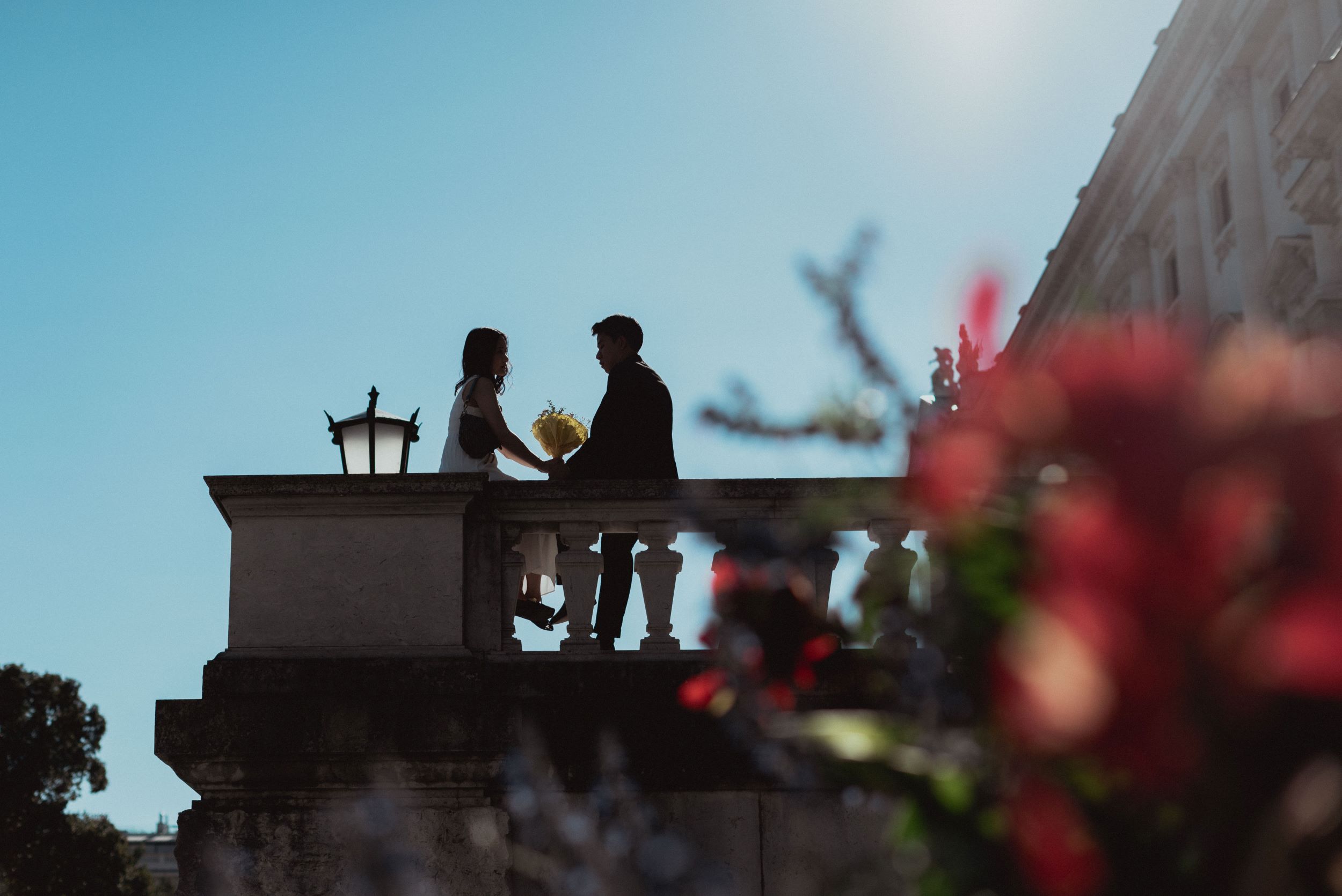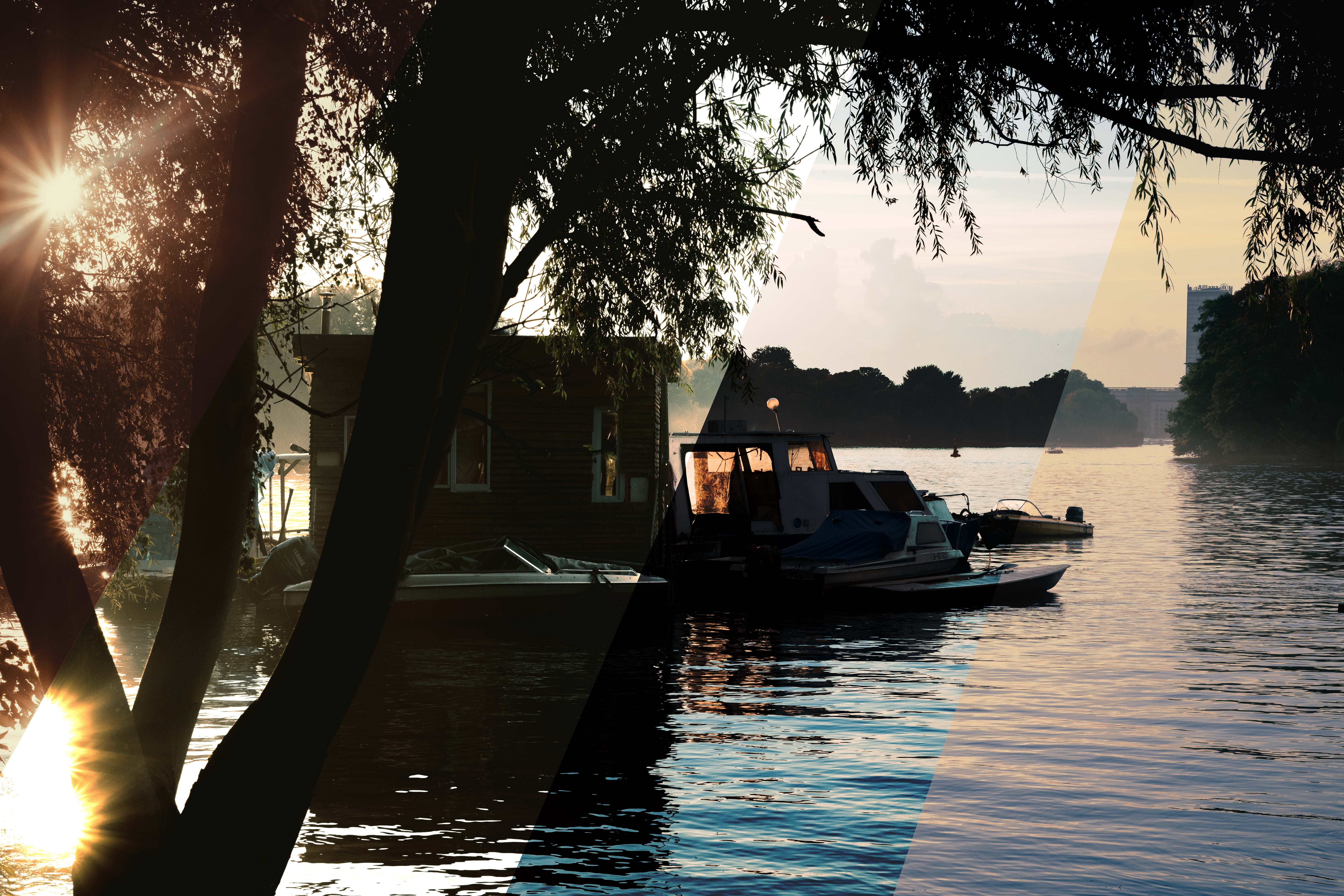
Read till the end of this post. A small gift is awaiting you there.
Here is a tool that I discovered a while ago – gradient map. I was watching a video with a technique for character drawing and there was a way to colour them with the gradient map tool. After using it for a couple of my drawings, I decided to try it out on my photos as well.
In this tutorial, I will show you how to use gradient maps. This is an extremely powerful tool which can help you to fix some errors or just make the photographs more appealing.
As far as I know, gradient map is available in Photoshop, Affinity Photo, Procreate …
I mostly edit pictures in Lightroom, but when I see potentially good photographs I take them to Photoshop. So in this tutorial, I will show you the gradient map tool in Photoshop. If you know this tool and use it in other programs this tutorial still might be helpful for you. Because I show not only the tool but also methods of use.
How to choose colours for a gradient map
For quite a long time I’ve been saving more and more gradients with different colours that I liked. If you don’t know what colours to choose here is a life hack – try to pick the colours from a painting or a photograph you like. WikiArt is a great source of the masterpieces of all times. I personally love paintings because, in my opinion, painters on average see colours better than photographers. It’s not proven but I see a lot fewer paintings with bad colours rather than photographs. For instance, I used Edward Hopper’s colours as references for some of my gradients.
The most important feature of the gradient map tool is that you can reduce the number of colours on your image. The stylisation is always about reduction. Reduction in details or colours can definitely help you improve your images. Thus, by using gradient maps you can make your photos more stylised. Some of the gradients that I have saved can be brown to black or bright warm green to dark cold green. Or sometimes I pick colours for a gradient map from a film photograph to make filmy colours on my shots.
Here is an example of one of the gradients that I use:

Step-by-step guide
1 – Define the colours for your gradient map
By that I mean to either choose 2 colours or up to 10-15 or any number you might require.
As I said, you can pick your colours from a painting or a photograph.
To do that you will need to select the gradient tool and open gradient editing by clicking on the gradient itself.
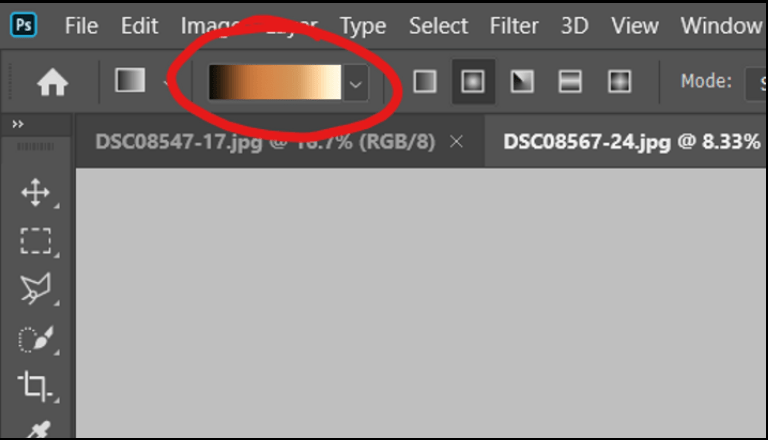
Then you will see the window where you can create a new gradient preset.
2 – Pick colours for your gradient map preset
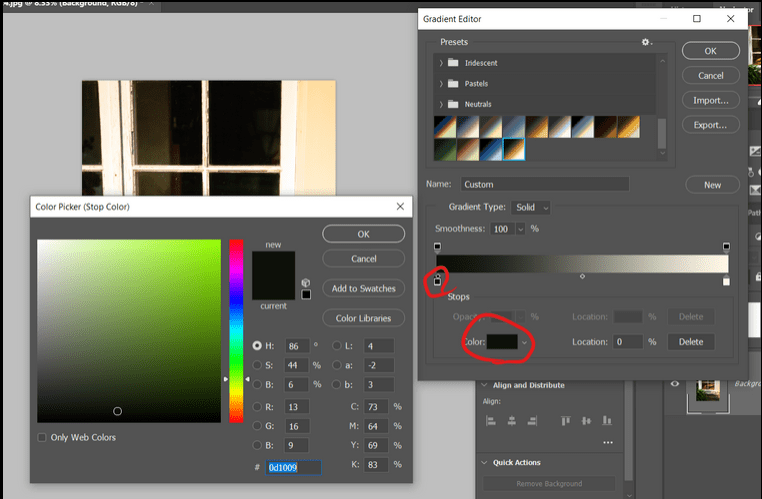
Start by clicking on the colour stop and then on the rectangle with your colour and then pick any colour on a photograph or a painting. Continue by pressing anywhere on the gradient to add more colour stops. The only key part is that it’s better to keep the colours consistent and pick the colours according to their values
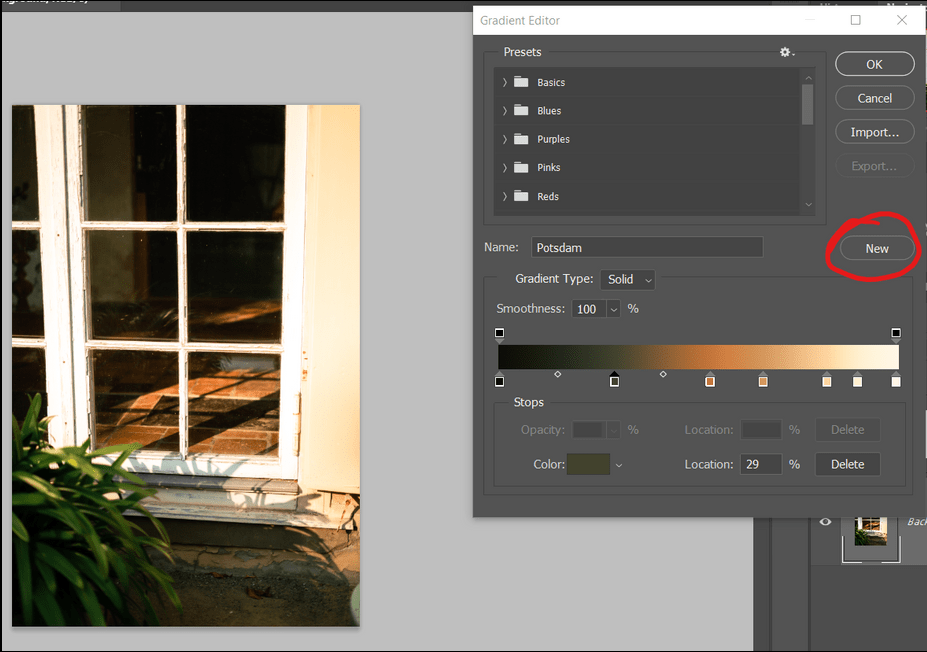
You can see what colours I picked from my example image in the screenshot below.
3 – Save your gradient preset
Once you are finished press NEW
And ONLY AFTER this press OK.
If you pressed OK then go back to this window by pressing on the gradient in the top left corner and then name your preset and click new.
I do not recommend choosing 2 unnaturally flashy contrasting colours. This would be bright blue and bright red, for example. Since, in most cases, such combinations will make a photograph look like a sign of your nearest corner shop or a fast-food restaurant but not like an artistic artwork.
4 – Apply the gradient map
So once you’re ready, apply the gradient map.
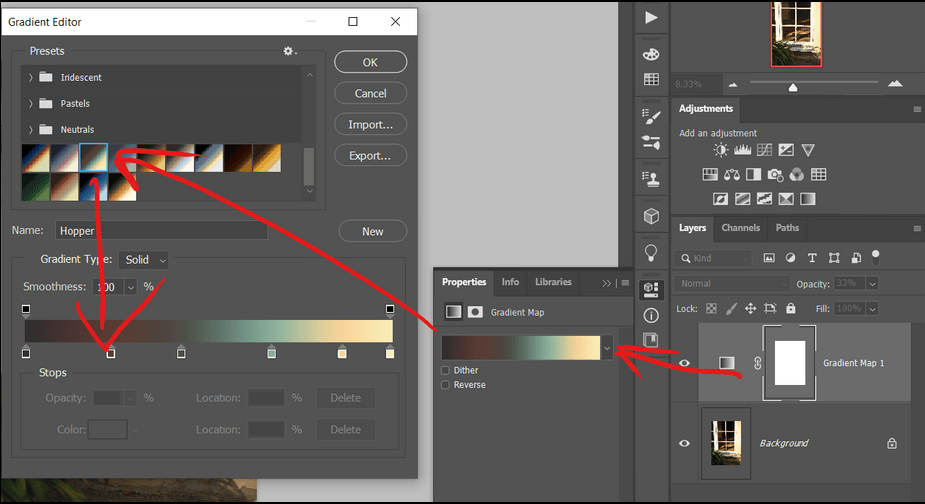
The gradient map can be found in Adjustments here:

Or click Image > Adjustments > Gradient map
Now open properties and click on the gradient or an arrow next to it. You will be able to choose your saved preset there. Here you can adjust the preset for your image by moving the colour stops along the gradient.
5 – Reduce the opacity of your gradient map layer
I never use 100% opacity gradient map filters for photography. Try reducing the opacity of the layer to about 15-40% to achieve the best results.
Then play around with it and you will see how powerful this tool is.
6 – Choose a blending mode
Try also changing the blending mode since it gives you more ways to manipulate the image. You can edit only colours in blending mode “Colour” or you can also manipulate light in photographs with most of the blending modes
For instance, that’s how the same gradient map looks different depending on the various blending modes:
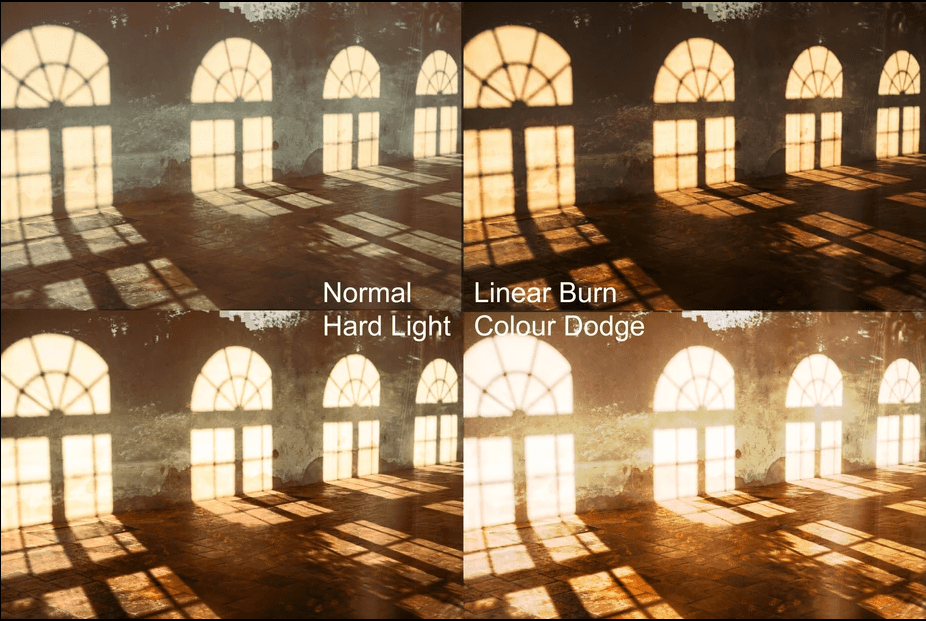
If you have a pre-edited image, try using Hue, Saturation or Colour blending modes. They will help since they affect colours but not the value. I use Normal, Overlay, Hard light and Hue most often. However, depending on the image, I use almost all of the modes but the craziest ones like Difference.
7 – Using the Mask layer with the gradient map
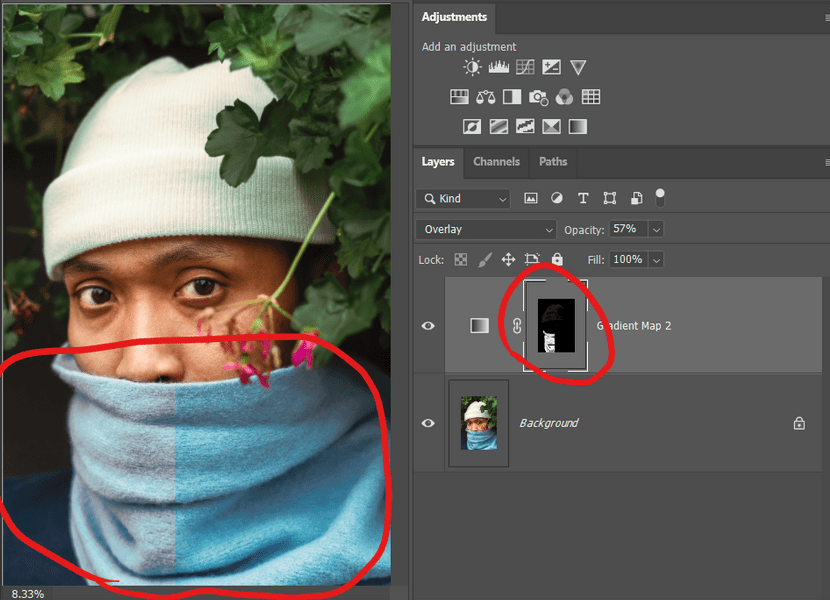
Using a mask you can also apply a gradient map to a part of the image. This enables you to colour separate objects, like the scarf in my example below. Obviously, you can mask any layers, so a gradient map is one of many ways to colour objects. Personally, I think this is just a great tool to make your colours stunning.
8 – Faking film colours with the gradient map
The great use of this photo filter is faking film colours.
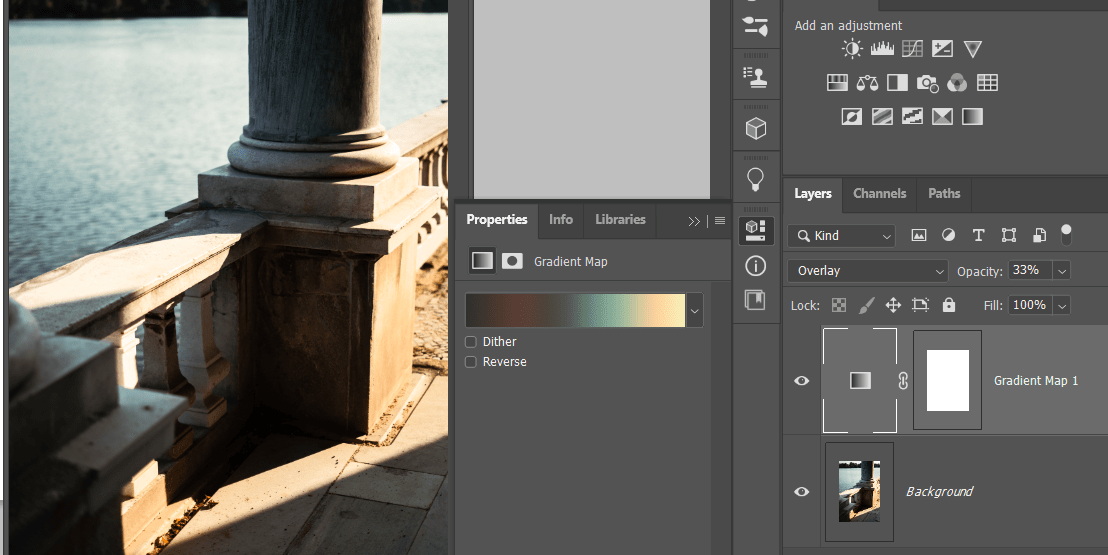
I’ve been shooting on film for a few years. I have another post about the choice between film and digital photography. And unfortunately, a few years ago 35mm film was about 3 or more times cheaper. I remember that you could get a cheap roll for 2-3€ and now the cheapest is around 10€. Lately, the film has been rediscovered by hipsters and other people. Since it became trendy they started doing film photography. As demand and popularity grow, the prices grow at the same rate. Currently, shooting and developing one film roll costs around 20-30€. So even though it’s not the same as the shots made on actual film, there is another affordable option. We can still make similar light, grain, noise and colours as in the film photos.
To make the colours “like on film”, you can use a reference mode or a preset in Lightroom. Or you can also adjust the colours and values by using the gradient map tool in Photoshop. I’m planning to create a pack of gradient maps and actions for Photoshop to fake different types of film.
You can try to achieve this yourself by choosing a film photograph without a lot of colour variations and picking some colours on the whole dynamic range from blacks to whites and applying to your image as I explained before.
If you have more great ideas to use the gradient map tool, please share them with me! I would be excited to hear from you.
A small gift from me
If you want to try out one of my gradient map presets try downloading this file.
Then subscribe to my blog which will help me to continue writing tutorials 🙂
[yikes-mailchimp form=”1″]
Open the photoshop file and save the gradient for yourself. This gradient won’t work for most of the images but for some sunny evening scenes and on opacity 15-25% it might look just fine.
Thank you very much for reading till the end! Check out the other posts that I write every week on different photography topics